With Content Lab, you can now leverage the power of AI to create blog posts that combine text and video clips.
On this page:
- Creating multimodal blog posts
- Adding additional video clips
- Downloading blog posts
- FAQs & Troubleshooting
Creating multimodal blog posts
- Open Content Lab and select the video you want to work with.
- Click Blog on the left side menu.
- Content Lab automatically generates two blog posts for any video you upload. These serve as a starting point and are listed on the left panel. Edit and use them as required.
- To create a new blog post, click the Generate Blog Post button at the bottom of the page.
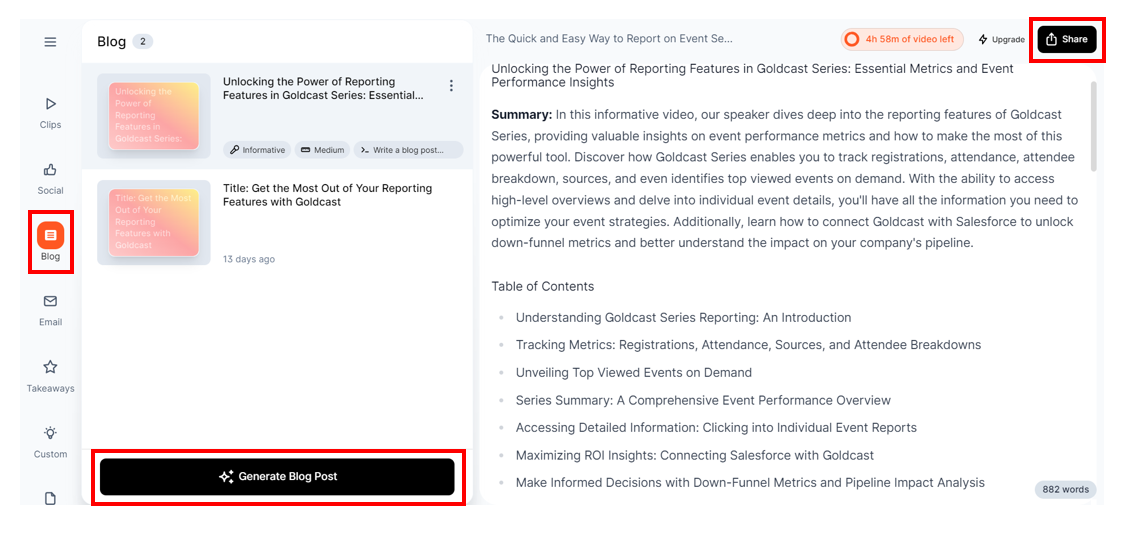
- Fine-tune your results by providing the following inputs:
- Tone of Voice: Select your preferred tone from available options, such as professional, helpful, conversational, informative, friendly, and playful, to create content that matches your brand’s voice.
- Length: Choose the desired text length:
- Short: 450 to 550 words
- Medium: 700 to 800 words
- Long: 1000 to 1200 words
- Prompt: You can use the default prompt or tailor it to match your requirements. Make the prompts detailed and specific to get the best results.
- Hit Generate.
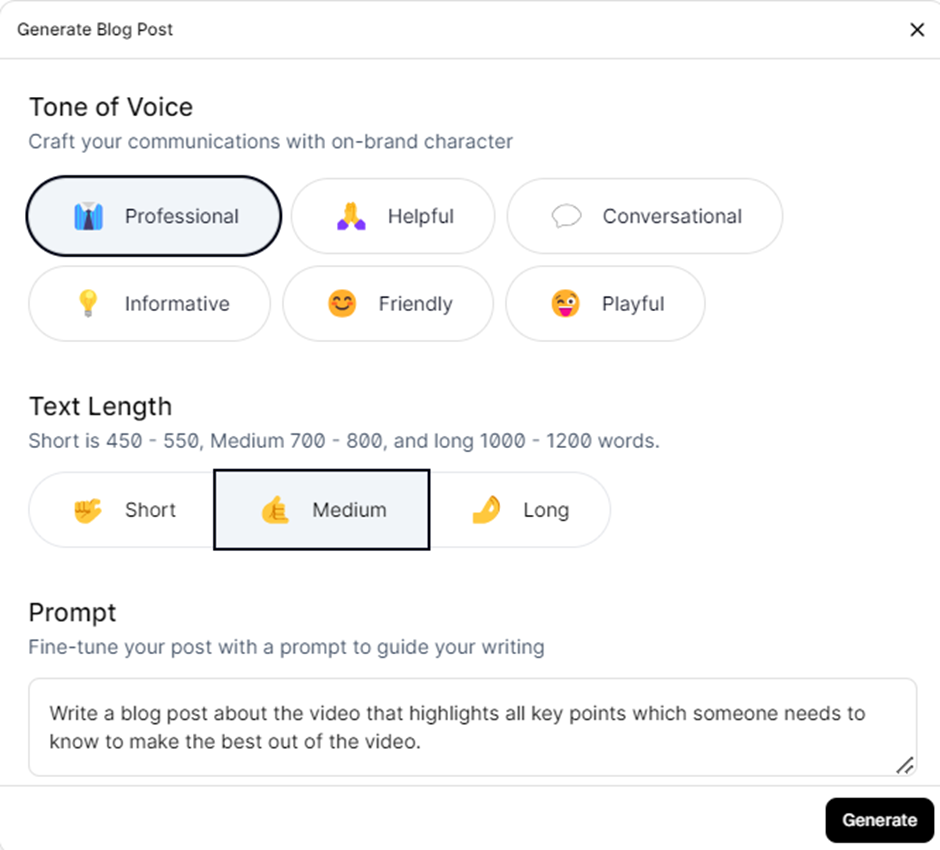
- The generated blog post includes text and relevant video clips.
- Use the inline text editor to edit the text portions. Add, remove, or replace text as required. You can also use shortcut keys to Bold (Ctrl + B), Italicize (Ctrl + I), and Underline (Ctrl + U) to format the text.
- Edit, download, replace, regenerate, or delete the included video clips by using the appropriate icons on the right.
Adding additional video clips
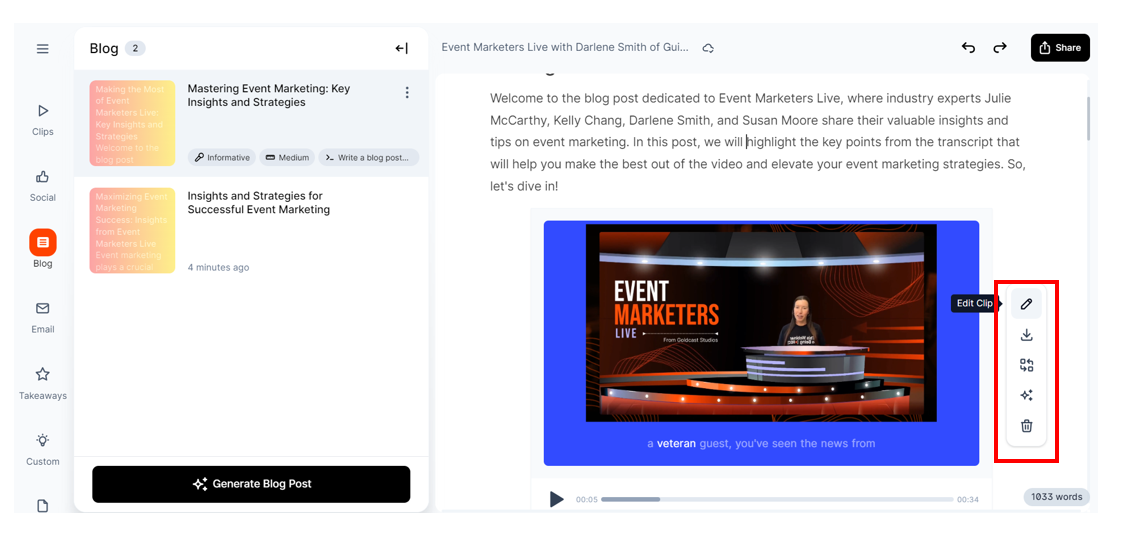
Did our AI miss out on adding a critical clip to the text? No worries. All you’ve got to do is select the relevant portion of the text and click Generate and Add Clip. Content Lab will add a new clip relevant to the selected text. You can then edit, replace, or regenerate it to fine-tune your results.
Downloading blog posts
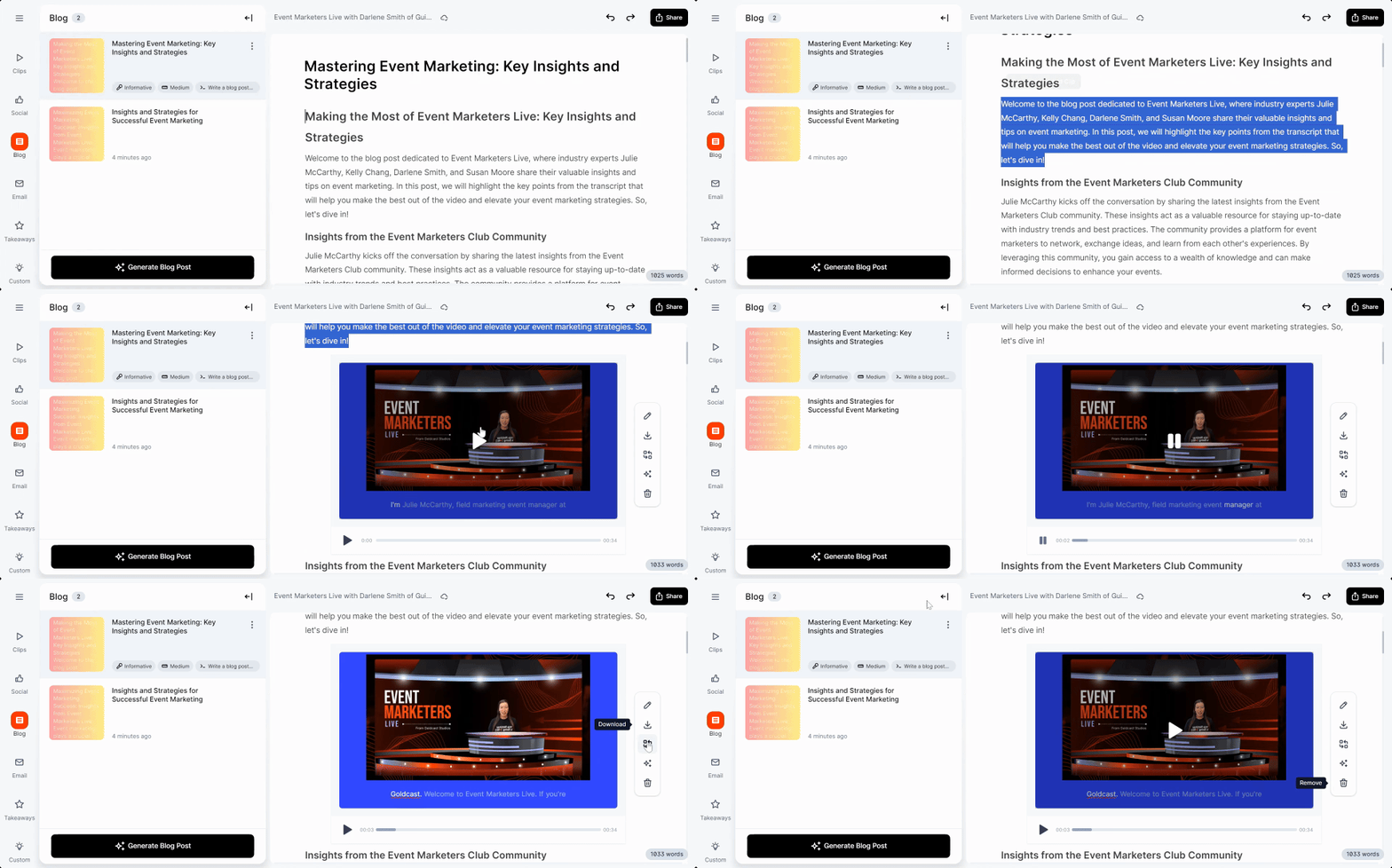
- After creating the post, click the Share button at the top right to share it externally.

- Use the Link tab to share the link to the blog post with your teammates.
- Click the Download tab to start downloading the multi-modal blog post. Content Lab will send the post as a zip file to your email. The zip file will contain a .docx file with the text component and separate .mp4 files for each video clip in the blog.
FAQs & Troubleshooting
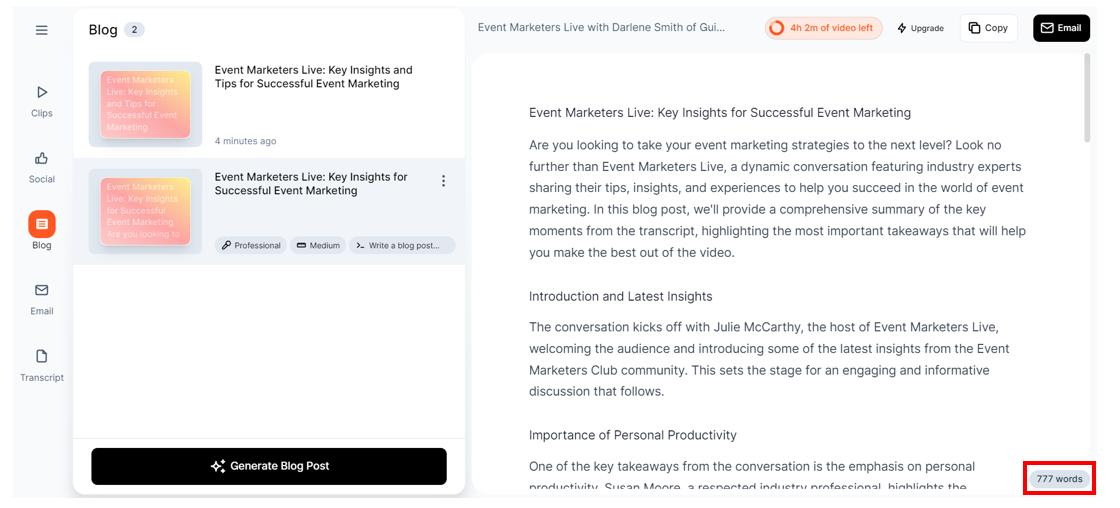
1. How can I check the number of words in the blog?
Watch out for the word counter at the bottom right.
2. How many blogs can I generate?
There are no restrictions. You can create as many as you need.
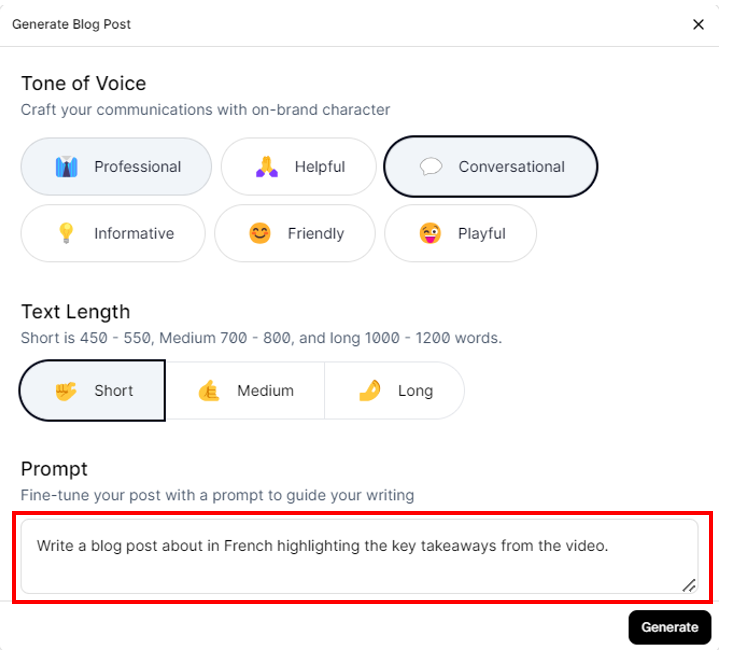
3. Can I create blogs in languages other than English?
Yes. Mention your desired language in the text prompt. Currently, Content Lab supports outputs in the following languages: English, Spanish, French, German, Chinese (Simplified and Traditional), Japanese, Korean, Russian, Portuguese (Brazilian and European), Italian, Dutch, Swedish, Polish, Turkish, Arabic, and Hindi. As our LLM gains more capabilities, we’ll update this list to include more languages.
4. How do I delete a previously generated blog post?
Click the required blog post on the left panel, tap the three dots icon next to it, and click Delete.
5. Can I download the post directly in Content Lab?
Yes. The download is sent to your email only the first time you download it. After that, you can click the Download button in Content Lab to save it directly to your computer.